Diff & Compare
Compare JSON changes side-by-side and highlight differences between versions.
What it does
- Highlights differences between panels
- Updates in real time as you edit
- Helps you review changes safely
Color meaning
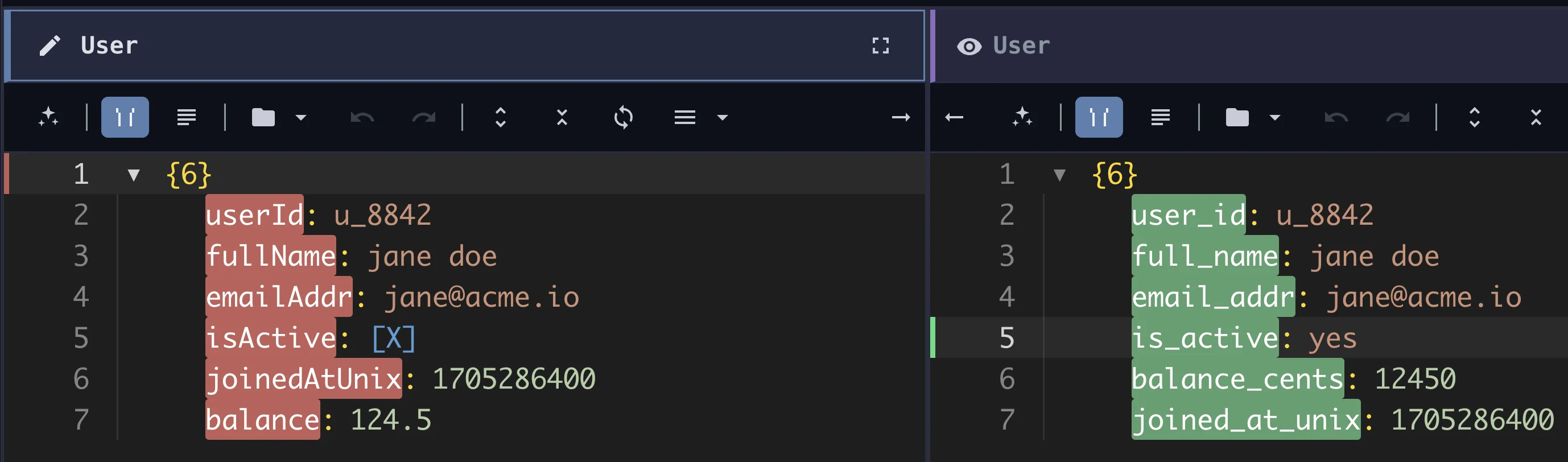
- Green → Added content
- Red → Removed content
How to use
- Open two panels (left and right)
- Load different versions or documents
- Enable compare mode
- Differences appear automatically
Real-time updates
- Edits on one side update the comparison instantly
- No need to refresh
Sync scroll
Both panels scroll together:
- Keeps differences aligned
- Makes large documents easier to review
How comparison works
The editor compares content at a character level.
This allows:
- Precise highlighting
- Inline changes detection
JSON-aware behavior
- Changes are shown within keys and values
- Structural changes are reflected visually
- Works for nested objects and arrays
Limitations
Diff is not perfect. Some cases may look unexpected:
Array reordering
- Reordered items may appear as:
- Removed (red)
- Added (green)
Instead of a “move”
Large documents
- Performance may slow down
- Updates may be slightly delayed
Complex structural changes
- Deep changes may appear as multiple edits
- Not always grouped logically
Tips for better comparison
- Compare smaller sections when possible
- Use formatting before comparing
- Focus on one area at a time
When to use diff
- Reviewing changes before saving
- Comparing versions
- Debugging data differences
When NOT to rely on diff
- Detecting moved items in arrays
- Understanding complex structural refactors
Related
Last updated on